Thursday, September 11, 2008

How to handle Overlapping of Large Text Fields in Crystal Reports

Level: Intermediate

Knowledge Required:
Crystal Reports

Description:
While working in Crystal Reports, we sometimes face a scenario when we need to put a Large Text Field (which can grow upto multiple lines). The issue comes if we try to put another Field after this Text Field. Example:


As you can see in above I have put to Formula Fields, both will contain Large Text which may expand. So here is the preview,


Therefore to solve this issue we can create multiple sub-sections in the same section. This can be achieved by Section Expert.


Now we will put the Fields in different sub-sections as,


And here is the preview again,


Note that in Crystal Reports Sections automatically expand, that is why when the first Text Field expands, the section also expands itself, therefore ultimately the next field renders properly.

Thursday, September 4, 2008

Using DataGridView CheckBox Column as RadioButton (OptionButton)

Level: Beginner Knowledge Required:
  • DataGridView Control
  • Data Binding
Description: In this post we shall see that how we can transform DataGridView control’s CheckBox column into Radio Button (option button). I have done 2 main things,
  1. Created a back-end logic when user clicks on CheckBox Column so only one CheckBox should be checked at a time
  2. Change the look of CheckBox column so it looks a Radio Button Column
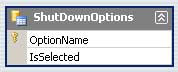
So to understand the first one, consider a DataGridView control as shown in the above figure. This DataGridView control is actually bind with a DataSet for example, As you can see there are 2 columns. The IsSelected column is actually a Boolean column which is normally rendered as CheckBox in DataGridView control. What we will be doing is that we first set our DataGridView to Read Only i.e., AllowUserToAddRows = False AllowUserToDeleteRows = False ReadOnly = True We are making our DataGridView control Read Only because it is easier to set the CheckBox checked or unchecked programmatically otherwise DataGridView control itself will be interfering and will create problems and complexities for us. OK now whenever user clicks on CheckBox we will be performing our custom operation. To do this we will use the DataGridView’s CellContentClick event. Here is the code,
Private Sub ShutDownOptionsDataGridView_CellContentClick(ByVal sender As System.Object, ByVal e As System.Windows.Forms.DataGridViewCellEventArgs) Handles ShutDownOptionsDataGridView.CellContentClick
    If e.ColumnIndex = Me.columnIsSelected.Index Then
        Dim drv As DataRowView
        Dim rowShutDownOption As ShutdownOptionDataSet.ShutDownOptionsRow
        ' in this event handler we know that which DataGridView's row is clicked
        ' so we are going to extract out the actual DataTable's row which is
        ' bind with this DataGridView's Row
        drv = CType(Me.ShutDownOptionsDataGridView.Rows(e.RowIndex).DataBoundItem, DataRowView)
        ' get the DataTable's row
        rowShutDownOption = CType(drv.Row, ShutdownOptionDataSet.ShutDownOptionsRow)

        ' get the row which is currently selected
        Dim rowCurrentlySelected() As ShutdownOptionDataSet.ShutDownOptionsRow
        rowCurrentlySelected = Me.ShutdownOptionDataSet.ShutDownOptions.Select("IsSelected=True")
        ' if some row found then make it de-selected
        If rowCurrentlySelected.Length > 0 Then
            rowCurrentlySelected(0).IsSelected = False
        End If
            ' ok now select the row which is clicked
        rowShutDownOption.IsSelected = True
    End If
End Sub
What we do is first get the row in which IsSelected=True and we make that row IsSelected=False. Then we set the row which is clicked as IsSelected=True. Next thing is to change the look of CheckBox to OptionButton / RadioButton. For this purpose we will be using DataGridView’s CellPainting event. Here is the code,
Private Sub ShutDownOptionsDataGridView_CellPainting(ByVal sender As Object, ByVal e As System.Windows.Forms.DataGridViewCellPaintingEventArgs) Handles ShutDownOptionsDataGridView.CellPainting
    If e.ColumnIndex = Me.columnIsSelected.Index AndAlso _
        e.RowIndex >= 0 Then
        e.PaintBackground(e.ClipBounds, True)

        Dim rectRadioButton As Rectangle

        rectRadioButton.Width = 14
        rectRadioButton.Height = 14
        rectRadioButton.X = e.CellBounds.X + (e.CellBounds.Width - rectRadioButton.Width) / 2
        rectRadioButton.Y = e.CellBounds.Y + (e.CellBounds.Height - rectRadioButton.Height) / 2

        If IsDBNull(e.Value) OrElse e.Value = False Then
            ControlPaint.DrawRadioButton(e.Graphics, rectRadioButton, ButtonState.Normal)
        Else
            ControlPaint.DrawRadioButton(e.Graphics, rectRadioButton, ButtonState.Checked)
        End If

        e.Paint(e.ClipBounds, DataGridViewPaintParts.Focus)

        e.Handled = True
    End If
End Sub
As you can see we have used the ControlPaint class to draw the RadioButton / OptionButton. Download: DGVCheckBoxAsRadioButton.zip

Wednesday, September 3, 2008

Asynchronous Data Loading using TableAdapter with Cancel Feature

Level: Intermediate Knowledge Required:
  • BackgroundWorker Control
  • DataGridView Control
  • Data Binding
  • TableAdapter
Description: In my previous post Implement SQLCommand Cancel with Threading I have discussed how to implement the SQLCommand Cancel using Threading. In this post we shall see, how we can implement the same feature in a TableAdapter. As we know that TableAdapter is used as a middle level man standing between Physical Database and Typed DataSet. Which gets the data from Physical Database and loads into Typed DataSet. Sometimes this loading of data takes time (for example due to complex query). Therefore we can provide the user an ability to cancel the on going command by clicking on Cancel Button. I have created a Test Database (TestDB) and have added a table (tbl_Student). Also I have added a Stored Procedure (GetStudent). Take a look at this Stored Procedure:
CREATE PROCEDURE [dbo].[GetStudent] 
AS
BEGIN
    SET NOCOUNT ON;

    -- here we are simulating a very long query
    -- which takes 3 seconds to complete
    WAITFOR DELAY '00:00:03';

    SELECT *
    FROM tbl_Student;
END
In this procedure I have added a WAITFOR DELAY SQL Statement. Which simulates a long query that takes time 3 seconds. We will call this procedure from our TableAdapter to fill the DataTable. Now we will add the SQLCommand Cancel stuff in our TableAdapter. This can be achieved by creating a Partial Class of TableAdapter,
Namespace TestDataSetTableAdapters
    Partial Class StudentTableAdapter
        Public Sub CancelSelect()
            Me.Adapter.SelectCommand.Cancel()
        End Sub
    End Class
End Namespace
As you see I have given the name of method CancelSelect which actually cancels the SelectCommand of Adapter. Note that I haven’t implemented any checking here (for example is command executing or NOT). This is upto the user of TableAdapter class. He/She will be responsible to check before executing this method. Here we have done with our TableAdapter. Now next thing is to implement the loading in the different Thread. For this purpose I have used the BackgroundWorker control which is quite simple. The overall idea is,
  • Create 2 buttons
    • LoadButton
    • CancelButton
  • When LoadButton is clicked
    • Execute the BackgroundWorker
  • In BackgroundWorker DoWork Event Handler
    • Note somewhere that Execution is started
    • Execute the Fill() Method of TableAdapter
  • When CancelButton is clicked
    • Check if execution is started then
      • Execute the CancelSelect() method of TableAdapter
Update Sep-4-2008: Here is the code of Form1
Public Class Form1

    ' ErrorText will contain the error information if occurred
    ' while loading data in different thread
    Private _ErrorText As String
    ' this boolean variable will be true when command is executed
    Private _CommandExecuted As Boolean

    Private Sub btnLoad_Click(ByVal sender As System.Object, ByVal e As System.EventArgs) Handles btnLoad.Click
        ' first we will disable the Load button so it should NOT be clicked again
        Me.btnLoad.Enabled = False
        ' then we will enable the Cancel button so the command can be canceled
        Me.btnCancel.Enabled = True
        ' set the status text
        Call Me.SetStatusText("Loading...")

        ' clear the Error Text
        Me._ErrorText = ""

        ' here we have first clear the currently loaded data
        ' from DataSet, because the Adapter will fill the DataSet
        ' in different thread, therefore it will create problems
        ' while displaying the same data (which is being modified
        ' in different thread) in DataGridView
        Me.TestDataSet.Clear()

        ' start the asynchronous task
        Me.BackgroundWorker1.RunWorkerAsync()
    End Sub

    Private Sub BackgroundWorker1_DoWork(ByVal sender As Object, ByVal e As System.ComponentModel.DoWorkEventArgs) Handles BackgroundWorker1.DoWork
        Try
            ' first set the executed flag
            Me._CommandExecuted = True
            ' execute the command
            Me.StudentTableAdapter.Fill(Me.TestDataSet.Student)
        Catch ex As Exception
            _ErrorText = ex.Message
        End Try
    End Sub

    Private Sub BackgroundWorker1_RunWorkerCompleted(ByVal sender As Object, ByVal e As System.ComponentModel.RunWorkerCompletedEventArgs) Handles BackgroundWorker1.RunWorkerCompleted
        ' ok our data is loaded now
        ' so enable the Load button
        Me.btnLoad.Enabled = True
        ' disable the Cancel button
        Me.btnCancel.Enabled = False
        ' if NO error was occurred in thread
        If Me._ErrorText = "" Then
            Me.SetStatusText(Me.TestDataSet.Student.Count & " Records loaded")
        Else ' else (some error was occurred)
            Me.SetStatusText(Me._ErrorText)
        End If
        ' since data is changed in different thread
        ' therefore by reseting the Bindings the DataGridView
        ' will refresh itself and will display all the data
        Me.StudentBindingSource.ResetBindings(False)
    End Sub

    Private Sub btnCancel_Click(ByVal sender As System.Object, ByVal e As System.EventArgs) Handles btnCancel.Click
        ' if command is executed then
        If Me._CommandExecuted Then
            ' cancel it
            Me.StudentTableAdapter.CancelSelect()
        End If
    End Sub


    Private Sub SetStatusText(ByVal sText As String)
        Me.lblStatus.Text = sText
    End Sub
End Class
Download: TableAdapterWithCancel.zip Note: The zip file contains TestDBScript.sql T-SQL Script which will, 1) Create a database "TestDB" 2) Create a table "tbl_Student" in that database 3) Create a Stored Procedure "GetStudent" 4) Put some data in tbl_Student Please execute this script before running the project.

Tuesday, August 12, 2008

Query Timeout in ADO.Net but NOT in SQL Server Management Studio

I was facing this issue for a while that I have created a Stored Procedure in SQL Server 2005 Database that performs a search on a table (according to the given parameters). It was happening that when this procedure was executed from ADO.net (my front-end Visual Basic Application) Timeout exception was occurring. But at the same time when we execute this procedure from SQL Server Management Studio it executes immediately.

The Timeout in Visual Basic Application was NOT coming immediately it was coming after some time when users execute the procedure many times. Whenever time out occurred, I went in the SQL Server Management Studio and just did ALTER (without changing a single thing in procedure). And the problem resolved for some time NOT permanently.

So I put this question on MSDN Forums and a member told me to put the WITH RECOMPILE in the procedure. He told me that

"I think the problem is with the cache. When you ALTER the procedure from Management Studio it is recompiled and the problem is fixed. this is my guess."

It sure fixed my problem and the Timeout never came afterwords. Here is the link to that post.

http://social.msdn.microsoft.com/Forums/en-US/...