Thursday, October 16, 2008

HTML Anchor Tag (<a> Link) with NO Redirection

Although this Blog is purely for Visual Basic Windows Forms Application Development. But I think we can discuss other stuff too.

So meanwhile working with HTML, I was trying to create an Anchor with a href defined but the link should NOT work. Click the following link,

Google

As you can see the above link should redirect this page to Google, but it is NOT redirecting it. OK now try to open the link in a new Tab (if you are using a borwser which has tabbed browsing support, i.e. Ctrl+Click). This time it should work. Here is the HTML,
<a href="http://www.google.com" onclick="return false;">Google</a>

As you can see in above "onclick" event we have executed a little javascript which returns false. This is the statement which is suppressing the default behaviour of anchor. Some sites handle it like this,

Google
<a href="javascript:void(0);" onclick="alert('You Clicked the Link');">Google</a>

Sunday, September 14, 2008

Binding DataGridView ComboBox Column

Level: Beginner Knowledge Required:
  • Data Binding
  • DataGridView
Description: We use DataGridView control lots of times while developing a Data Driven Application. We usually bind the DataGridView control with some BindingSource. Also we can bind the DataGridView's ComboBox Column to some other BindingSource. That is DataGridView has different DataSource and it's ComboBox column has a different. Consider the following scenario, We have following Typed DataSet,
OrderDataSet
First we will create a simple User Interface, As you can see in the above figure, the DataGridView control is bind with OrderDetail Table. Note that the Product_ID column is displaying ID which is NOT a friendly approach. Instead Product Name should be displayed here. We can use the DataGridView's ComboBox Column here, in which we will populate all the products. The main point to be focused here is that, we will be binding the DataGridView control with the same OrderDetail DataTable, in which there is no Product_Name column. But on front-end the Product_ID column will be set to ComboBox Column in which we will populate the Products' Name. Since we need to populate the ComboBox with Products' Name. Therefore we will add another Typed DataSet and BindingSource to our Form, We have bind our ProductBindingSource with ProductDataSet which contains Product DataTable. We will fill this table in Form_Load event Handler.
IMPORTANT: This table needs to be filled before we fill the OrderDataSet OR at-least before the OrderDetail DataGridView is displayed
Now we need to setup the Product_ID column. First set the ColumnType of Product_ID column to DataGridViewComboBoxColumn and then set the properties as,
  • DataPropertyName = Product_ID
  • DataSource = ProductBindingSource
  • DisplayMember = Product_Name
  • ValueMember = Product_ID
DataPropertyName: tells that Product_ID column of OrderDetail DataTable should be updated DataSource: is the source from where the list of Products will be taken, in this case the ProductBindingSource which is actually bind with Product DataTable DisplayMember: Column of Product DataTable which should be used to display in DataGridView control ValueMember: Column of Product DataTable which should be used to set the Value in DataGridView which ultemately will send the value in OrderDetail DataTable Download: BindingDataGridViewComboBox.zip

Thursday, September 11, 2008

How to handle Overlapping of Large Text Fields in Crystal Reports

Level: Intermediate

Knowledge Required:
Crystal Reports

Description:
While working in Crystal Reports, we sometimes face a scenario when we need to put a Large Text Field (which can grow upto multiple lines). The issue comes if we try to put another Field after this Text Field. Example:


As you can see in above I have put to Formula Fields, both will contain Large Text which may expand. So here is the preview,


Therefore to solve this issue we can create multiple sub-sections in the same section. This can be achieved by Section Expert.


Now we will put the Fields in different sub-sections as,


And here is the preview again,


Note that in Crystal Reports Sections automatically expand, that is why when the first Text Field expands, the section also expands itself, therefore ultimately the next field renders properly.

Thursday, September 4, 2008

Using DataGridView CheckBox Column as RadioButton (OptionButton)

Level: Beginner Knowledge Required:
  • DataGridView Control
  • Data Binding
Description: In this post we shall see that how we can transform DataGridView control’s CheckBox column into Radio Button (option button). I have done 2 main things,
  1. Created a back-end logic when user clicks on CheckBox Column so only one CheckBox should be checked at a time
  2. Change the look of CheckBox column so it looks a Radio Button Column
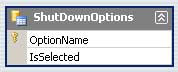
So to understand the first one, consider a DataGridView control as shown in the above figure. This DataGridView control is actually bind with a DataSet for example, As you can see there are 2 columns. The IsSelected column is actually a Boolean column which is normally rendered as CheckBox in DataGridView control. What we will be doing is that we first set our DataGridView to Read Only i.e., AllowUserToAddRows = False AllowUserToDeleteRows = False ReadOnly = True We are making our DataGridView control Read Only because it is easier to set the CheckBox checked or unchecked programmatically otherwise DataGridView control itself will be interfering and will create problems and complexities for us. OK now whenever user clicks on CheckBox we will be performing our custom operation. To do this we will use the DataGridView’s CellContentClick event. Here is the code,
Private Sub ShutDownOptionsDataGridView_CellContentClick(ByVal sender As System.Object, ByVal e As System.Windows.Forms.DataGridViewCellEventArgs) Handles ShutDownOptionsDataGridView.CellContentClick
    If e.ColumnIndex = Me.columnIsSelected.Index Then
        Dim drv As DataRowView
        Dim rowShutDownOption As ShutdownOptionDataSet.ShutDownOptionsRow
        ' in this event handler we know that which DataGridView's row is clicked
        ' so we are going to extract out the actual DataTable's row which is
        ' bind with this DataGridView's Row
        drv = CType(Me.ShutDownOptionsDataGridView.Rows(e.RowIndex).DataBoundItem, DataRowView)
        ' get the DataTable's row
        rowShutDownOption = CType(drv.Row, ShutdownOptionDataSet.ShutDownOptionsRow)

        ' get the row which is currently selected
        Dim rowCurrentlySelected() As ShutdownOptionDataSet.ShutDownOptionsRow
        rowCurrentlySelected = Me.ShutdownOptionDataSet.ShutDownOptions.Select("IsSelected=True")
        ' if some row found then make it de-selected
        If rowCurrentlySelected.Length > 0 Then
            rowCurrentlySelected(0).IsSelected = False
        End If
            ' ok now select the row which is clicked
        rowShutDownOption.IsSelected = True
    End If
End Sub
What we do is first get the row in which IsSelected=True and we make that row IsSelected=False. Then we set the row which is clicked as IsSelected=True. Next thing is to change the look of CheckBox to OptionButton / RadioButton. For this purpose we will be using DataGridView’s CellPainting event. Here is the code,
Private Sub ShutDownOptionsDataGridView_CellPainting(ByVal sender As Object, ByVal e As System.Windows.Forms.DataGridViewCellPaintingEventArgs) Handles ShutDownOptionsDataGridView.CellPainting
    If e.ColumnIndex = Me.columnIsSelected.Index AndAlso _
        e.RowIndex >= 0 Then
        e.PaintBackground(e.ClipBounds, True)

        Dim rectRadioButton As Rectangle

        rectRadioButton.Width = 14
        rectRadioButton.Height = 14
        rectRadioButton.X = e.CellBounds.X + (e.CellBounds.Width - rectRadioButton.Width) / 2
        rectRadioButton.Y = e.CellBounds.Y + (e.CellBounds.Height - rectRadioButton.Height) / 2

        If IsDBNull(e.Value) OrElse e.Value = False Then
            ControlPaint.DrawRadioButton(e.Graphics, rectRadioButton, ButtonState.Normal)
        Else
            ControlPaint.DrawRadioButton(e.Graphics, rectRadioButton, ButtonState.Checked)
        End If

        e.Paint(e.ClipBounds, DataGridViewPaintParts.Focus)

        e.Handled = True
    End If
End Sub
As you can see we have used the ControlPaint class to draw the RadioButton / OptionButton. Download: DGVCheckBoxAsRadioButton.zip